Optidata Work Updates — April 2025
Updates and new features for Optidata Work in Mail, Drive, and Calendar. See the latest improvements and benefits for users.
 Juliano Trentin
April 2025 brought a series of important updates to Optidata Work, enhancing the experience across Mail, Drive, and Calendar. Below, check out all the new features, improvements, and benefits for users and teams.
Email Feature
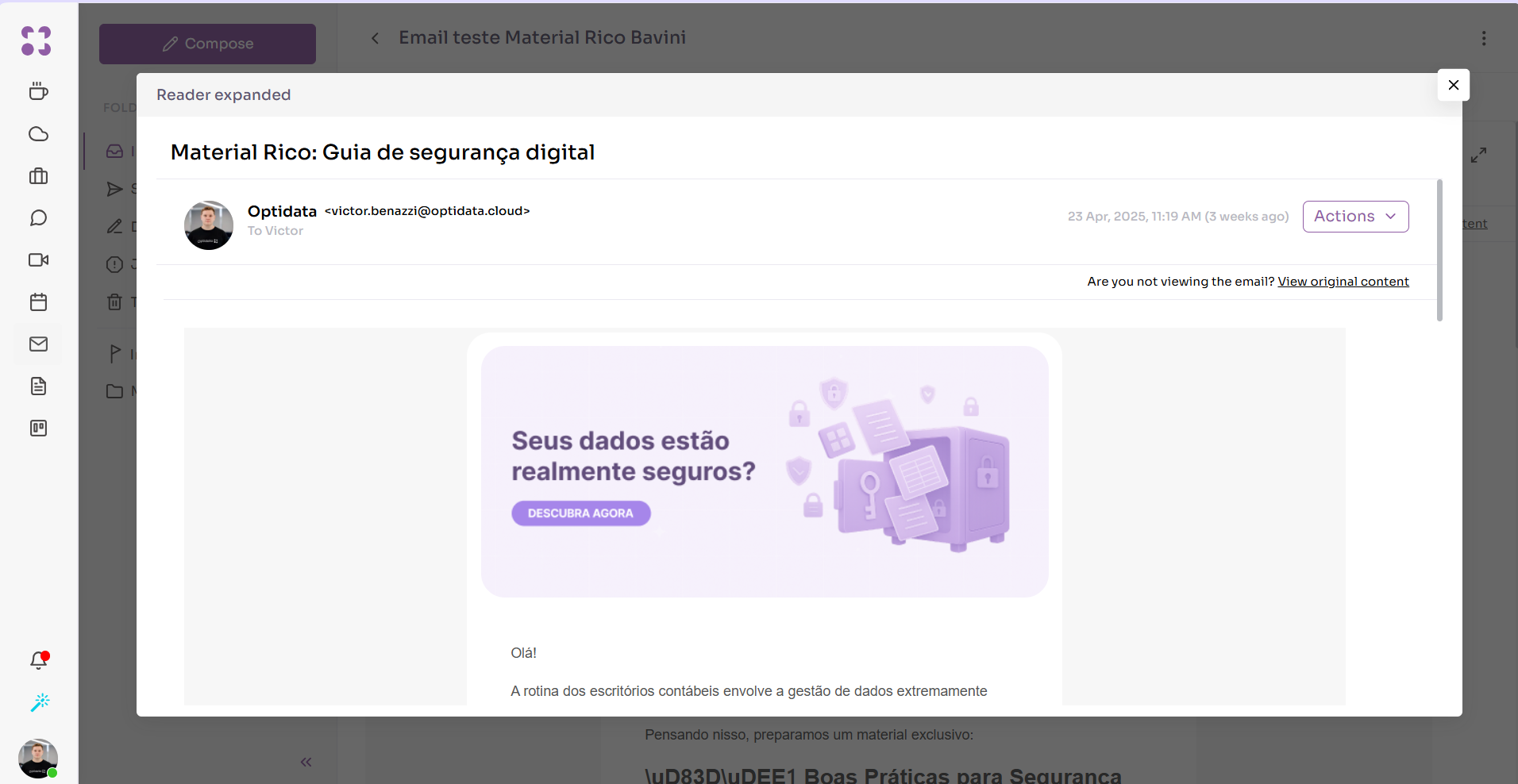
Update: Expanded Reader View
A fully secure corporate email feature. Users have access to their corporate inbox and can: send and receive emails, create custom folders for different communication purposes, access and delete messages flagged as spam, recover messages, and more. The feature also offers an intuitive, functional interface with advanced protection, anti-spam filtering, and defense against attacks and fraud.
Users can now view emails in an expanded reader. To open it, simply double-click an email in the list from any folder (except Drafts), or click the expand view button.
Problems It Solves
Information overload: in inboxes with a high volume of emails, the expanded view helps reduce the feeling of overload, allowing users to focus on one message at a time.
Benefits
Focused reading without divided attention: with the expanded view, users can direct their full attention to a single email, avoiding errors and distractions that can occur when an email is displayed alongside other information.
Security Alert When Clicking External Links
Description
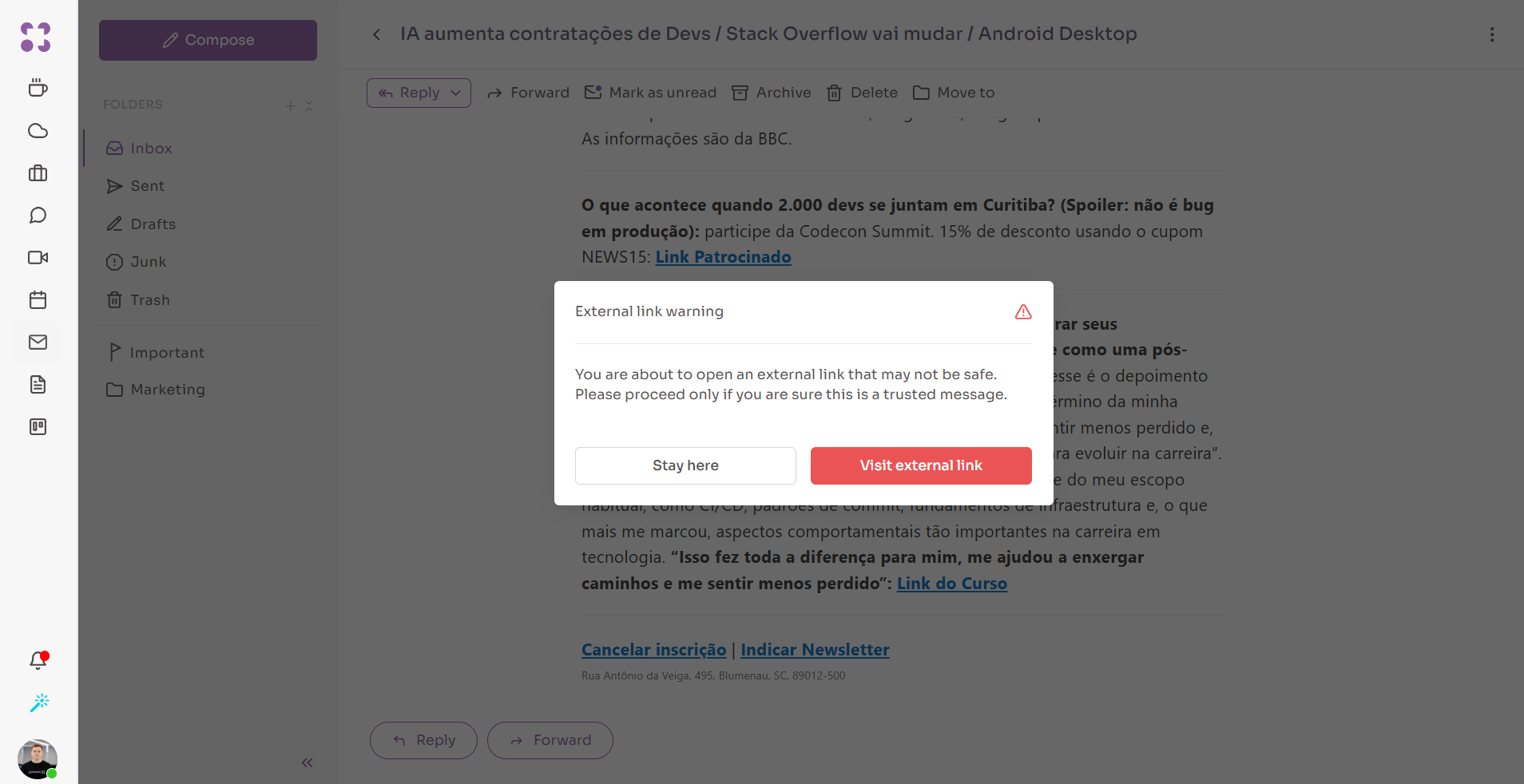
When users click on external links, a security alert is displayed informing them that the link could not be verified by Optidata and that proceeding will redirect them outside of Optiwork Mail.
Problems It Solves
Malware risk: external links can often lead to malicious websites that install malware. The security alert helps prevent users from accessing these sites.
Corporate network compromise: unsafe links can compromise the entire corporate network. With proactive alerts, the company’s infrastructure can be protected.
Benefits
-
Increased security awareness: the alerts help educate users about the risks associated with external links, promoting a cybersecurity culture within the organization.
-
Phishing prevention: reduced risk of users falling victim to phishing attacks, where criminals attempt to trick users into revealing confidential information.
-
Sensitive data protection: users become more cautious when clicking links, protecting sensitive company and client information.
-
Informed decision-making: the alert allows users to make a conscious choice about whether to proceed.
-
Fewer security incidents: reduction in the number of email-related security incidents, resulting in fewer disruptions to company operations.
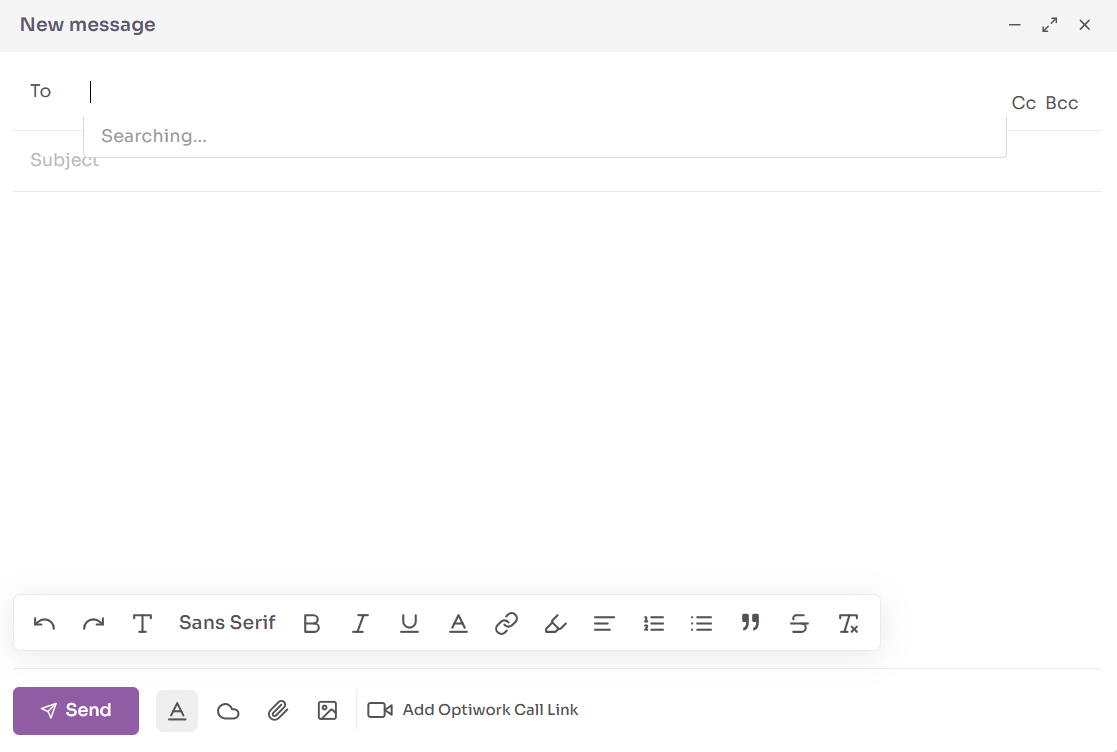
Update: Auto-Focus Cursor on Recipients in New Emails
Description
When composing a new email, the cursor now automatically focuses on the recipient field.
Problems It Solves
Send failures: if the email doesn’t have all fields filled in correctly, it may not reach the intended recipient.
Interface frustration: users may struggle to navigate between fields.
Benefits
Reduced errors: lower chance of users forgetting to add recipients or entering information in the wrong field.
Improved UX: this update makes the interface even more intuitive, contributing to a smoother email composition flow and a better user experience.
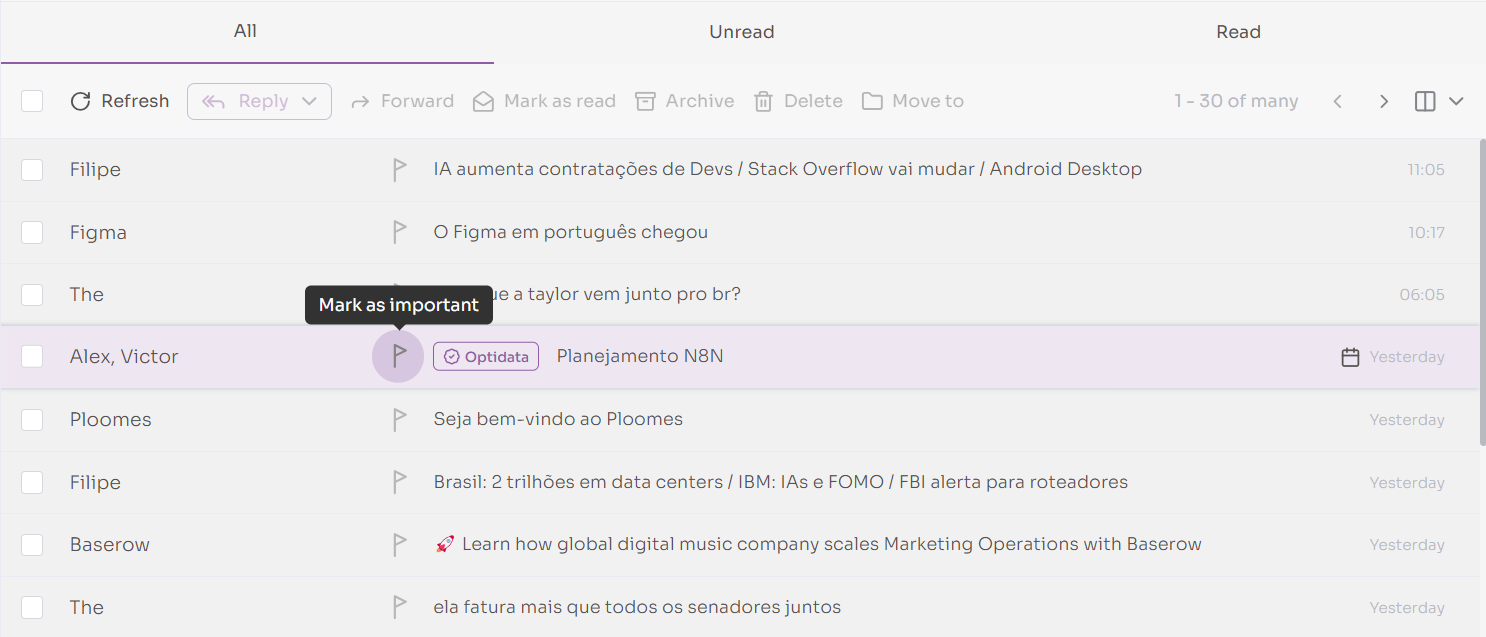
Update: Flag Emails as Important
Description
Users can now flag emails as important by clicking the flag icon. Clicking the “Important” tab in the sidebar displays all flagged messages. This feature does not apply to messages in the Drafts or Trash folders.
Problems It Solves
Inbox clutter and difficulty finding older emails: with a high volume of messages, the inbox can become disorganized, worsening the user experience and making it harder to locate sent or received emails.
Benefits
Task and message prioritization: flagging an email as important helps users quickly identify which messages require immediate attention.
Better organization and message tracking: this update allows users to keep their inbox organized by highlighting essential emails and minimizing information overload.
Better time management: by quickly identifying emails that require a response or action, users can manage their time more effectively, focusing on what truly matters.
Customized experience: the update lets each user personalize their email experience according to their needs and preferences.
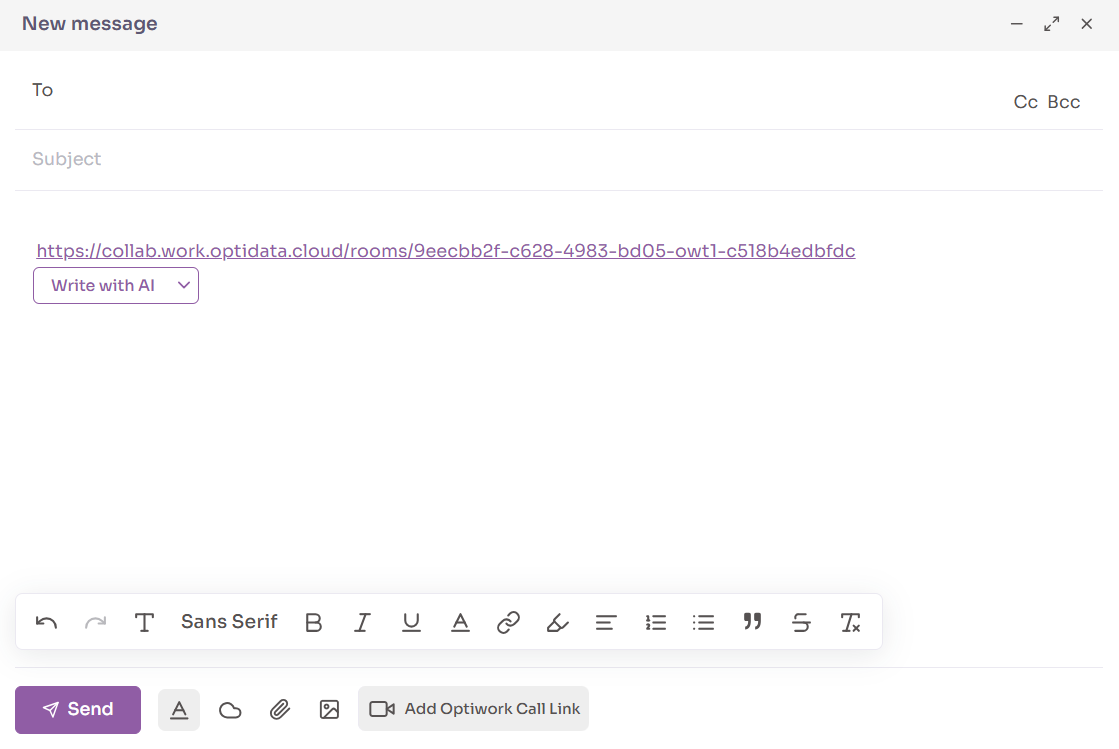
Update: Add Call Link
Description
Clicking the “Add Optiwork Call Link” button inserts a call link directly into the email body.
Problems It Solves
Missed meetings or delays due to missing links.
Benefits
Speed and ease of contact: users have immediate access to the link and can start calls instantly.
Update: Display Calendar Event Data
Description
In the email list view, an event identification icon is now displayed. Additionally, responses to invitations and event cancellations are shown in a new format.
Problems It Solves
Missed meetings or delays due to lack of event information.
Benefits
Clear and quick event overview: users have access to key event details such as start time, end time, organizer, and attendees.
Fewer missed meetings and late arrivals: with all event information available in the email, the likelihood of delays or missed meetings drops significantly.
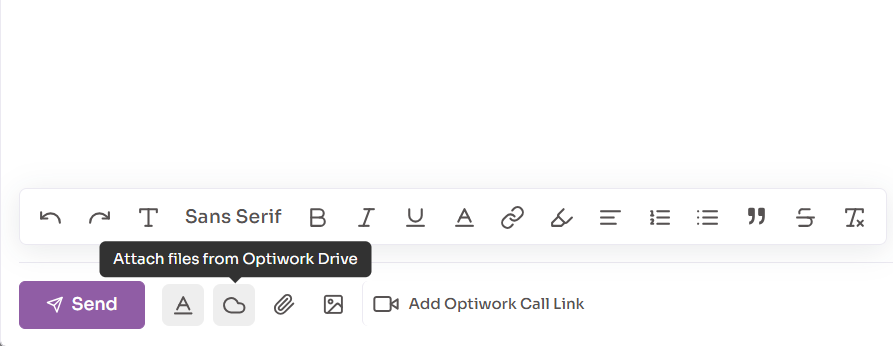
Update: Save Attachments to Drive
Description
Users can now save email attachments directly to the Drive. Clicking “Save all attachments to Drive” stores all files in the selected folder. To save an individual attachment, simply click the “Save to Drive” button next to the desired file.
Problems It Solves
Wasted time saving files individually and uploading them to the drive one by one.
Lost files: files can get lost among countless emails in the inbox, impacting user productivity.
Benefits
Convenience and speed: no need to open another tab to access the drive, save the files, and then upload them. The entire process is done with a single click on “Save all attachments to Drive.”
Organization: the ability to save files directly from email helps keep content organized and reduces the risk of losing files.
Update: Email Drafts
Description
Mail now includes a drafts feature. Drafts are displayed both in the dedicated Drafts folder and within email conversation threads.
Problems It Solves
Unexpected interruption while writing and fear of losing content already written: power outages, crashes, or any other unforeseen event that closes Mail.
Errors from rushed sending: emails sent without attachments, without a signature, or with grammatical errors.
Benefits
Auto-save prevents content loss: accidents like closing a tab, browser crashes, or power outages can happen, and without drafts, the content would be lost. This feature prevents rework and reduces user frustration.
Organizing thoughts: users can start an email, take time to review it or take a break, and then pick up right where they left off.
Update: Filter Emails by Read, Unread, and Important in Folders
Description
Users can now filter emails in each folder by read, unread, and important status.
Problems It Solves
Difficulty finding emails pending a response or flagged as important: without filters, users must spend a long time searching for an email, depending on when it was received.
Inbox clutter and loss of important emails: if a user receives a high volume of emails daily, messages can easily get buried and the inbox can become completely disorganized.
Benefits
Organization and faster viewing: in addition to making emails easier to find, this feature allows the inbox to be organized in the way that best suits the user’s needs.
Update: Custom Filters for Email Organization
Description
Users can create custom filters to automatically organize their inbox.
Problems It Solves
The same issues described in the “Filter emails by read, unread, and important in folders” update above.
Benefits
Inbox personalization: users have the freedom to organize their inbox according to their specific demands and needs.
Update: Respond to Calendar Invites from Email
Description
Users can respond to a Calendar invite directly from the event email.
Problems It Solves
Low meeting attendance: invites that require too many steps may be ignored.
Interrupted or fragmented experience: users need to leave their email — stepping out of their current workflow — to accept a meeting in another app or screen.
Lack of visibility for the organizer: without a recorded response, the organizer has no visibility into who will attend.
Benefits
Prevents forgotten meetings: by responding immediately, users reduce the risk of putting it off and ultimately forgetting to confirm or attend.
Faster responses: users can confirm or decline a meeting with a single click, without needing to open other apps or pages.
Better clarity for organizers: quick responses help meeting organizers know in advance who will participate, enabling better planning.
Update: Direct Link to Folder or File
Description
When clicking on a file attached to a notification email, the user is taken directly to the file. The link received in the email directs the user to the shared items page, with the shared file or folder already open on screen.
Problems It Solves
Wasted time navigating through multiple steps to open a shared link.
Benefits
Speed and time savings: with a single click, the user is directed to the shared file, enabling a smooth and efficient experience without multiple steps or tab switching.
Drive Feature
General Description A drive for storage, collaboration, and organization with maximum security. The tool enables cloud file management, sharing with colleagues, access from anywhere in the world, and access permission controls.
Update: Trash Cleanup and Version Control Settings
Description
Users can now define the retention period for files in the trash and the maximum number of stored versions.
Problems It Solves
Risk of keeping sensitive files too long: deleted files that remain in the trash may still be accessible longer than they should be, creating security risks.
Excessive storage usage from old versions: files with many minor versions (such as collaborative documents) can take up excessive space if no limit is set.
Benefits
More control over storage: allows users or administrators to set retention policies that prevent excessive accumulation of files in the trash or unnecessary versions.
Space optimization: by limiting versions and automatically emptying the trash, the drive consumes less storage — especially useful for plans with storage limits.
Cost reduction: avoids the need to purchase additional storage due to accumulated trash or excessive version history.
Improved system performance: fewer unnecessary files and old versions help the system run faster and more efficiently.
Update: Document Approval
Description
Users can now request document approval from other users.
Problems It Solves
Disorganized review and approval processes: without a dedicated feature, users rely on scattered emails or messages to request approvals.
Delays caused by dispersed notifications: by centralizing approval requests in the drive, users have a clear, prioritized view of what needs approval without accessing multiple platforms or tabs.
Benefits
Faster document approvals: the workflow becomes quicker since recipients can approve or reject directly from the notification, without needing to open the file or browse the drive.
Centralized decision-making: approvals are recorded in a single location (notification center), making it easier to track and reducing the risk of losing important information.
Greater control and traceability: the system records who approved, when they approved, and what the content was, bringing more security and transparency to collaborative processes.
Less rework: with formalized approvals, the risk of changes to already-validated documents or premature submissions drops significantly.
Update: Flag Important Files and Track Usage
Description
The option to flag files as important has been added. When a user selects this option, they receive notifications in the notification center about the file’s activity.
Problems It Solves
Difficulty tracking changes in shared files: in collaborative environments, it’s common to lose track of who changed what and when.
Excessive manual checking: without notifications, users must regularly open files to see if changes have been made.
Benefits
Real-time tracking: with automatic notifications, users stay informed of any changes, comments, or activity on flagged files.
Reduced risk of missing important changes: with centralized alerts, no relevant update goes unnoticed.
Improved collaborative work: in teams or contexts where multiple users edit files together and don’t always communicate changes, this update helps ensure more precise tracking.
Update: Attachment Audit Across Applications
Description
An audit record is generated when Drive files are added as attachments in Chat, Mail, Projects, and Social. This information is displayed both in the file’s own audit menu and in the admin panel’s audit center.
Problems It Solves
Difficulty identifying improper use: without records, the sharing of sensitive documents could go unnoticed in emails, chats, or projects.
Security vulnerabilities: when there’s suspicion of leaks or improper file use, the lack of traceability makes it difficult to identify the responsible party and the origin.
Non-compliance with internal policies or regulations (such as LGPD): the absence of detailed auditing makes accountability in audits more difficult.
Benefits
Easier internal and external audits: with a unified history, it’s possible to verify how documents were used, by whom, and in what contexts.
Greater transparency in file usage: whenever a file is attached in other applications, the record is automatically generated, enabling complete tracking of file movement.
Update: Security Center
Description
The Optiwork Security Center has been created. On this page, administrators can enable 2FA globally and require users to change their passwords.
Problems It Solves
Risk from leaked credentials: without two-factor authentication, an attacker with a password and email can gain full access.
Difficulty enforcing security policies at scale: administrators must manually guide users or rely on individual compliance.
Benefits
Increased protection against unauthorized access: by activating 2FA for all users, accounts are more secure even in the event of password leaks.
Rapid incident response: the ability to force password changes enables immediate action when compromise is suspected.
Compliance with internal policies and security standards: facilitates the enforcement of best practices required by certifications and regulations such as ISO, LGPD, and GDPR.
Update: Notification Center
Description
The notification center has been redesigned with new features: view notifications organized into “For Me” and “General” categories, unread notifications are highlighted for easy identification, and notifications can be marked as read with a single click.
Problems It Solves
Risk of missing important alerts: without highlighting unread items, critical messages can go unnoticed among older notifications.
Benefits
Task and request tracking: the new structure helps ensure that no relevant notification goes unnoticed, especially in environments with high message volumes.
Calendar Feature
General Description An integrated, intelligent calendar designed to organize appointments and ensure precise deadline management, boosting daily efficiency.
Update: Event Reminders / Event Notifications
Description
Event reminders are sent 10 minutes before each event starts and are displayed across all applications the user has open.
Problems It Solves
Forgetting important meetings, poor organization, and recurring tardiness: forgetting meetings is quite common in daily work, especially on busy days. This can happen due to a lack of proper routine, an overload of tasks, or being unprepared.
Negative impact on professional image: arriving late or unprepared can damage a user’s reputation and may even contribute to a potential warning or dismissal.
Benefits
Better time management: this feature promotes punctuality, prevents late arrivals or forgotten meetings, and gives users a brief window to prepare for their next appointment.
Update: Customize Event Reminders
Description
Users can now select when an event reminder will be triggered, choosing from the available options. If preferred, they can also disable the notification for a specific event.
Problems It Solves
Notifications at inconvenient times: fixed reminders don’t fit every context and may arrive too early or too late, impacting the user’s organization.
Lack of control: users may feel they don’t have control over their own schedule.
Benefits
More personalized experience and greater autonomy: users can customize reminders according to their preferences.
Update: Add Groups to Events
Description
Groups can now be added directly to events. The available groups for selection are those created in the admin panel.
Problems It Solves
Manually adding participants to an event: if an event has many attendees, the manual invitation process can take hours.
Forgetting participants: manual invitations can lead to important participants being overlooked, which not only impacts meeting productivity but can also create discomfort for the forgotten user.
Benefits
Convenience and speed: adding groups to events enables quick, error-free invitations. If a group already includes all marketing team members, for example, there’s no longer a need to add each user individually.
Schedule a demo
See how Optiwork can transform your company's collaboration.